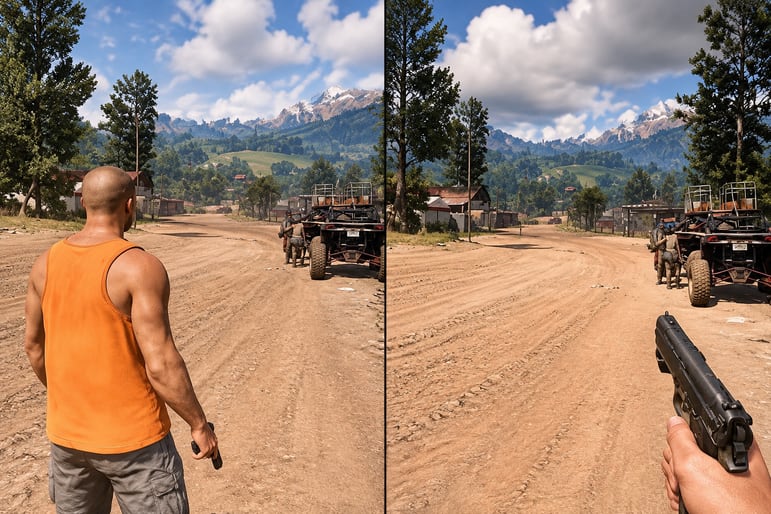
GTA 6 does not offer a standard first-person toggle for the entire game. Its launch version includes temporary views for inspecting surroundings, using compatible weapon sights, and looking at the phone. A player-discovered camera glitch can extend first-person viewing into ordinary gameplay, but that workaround is separate from the supported camera controls.
For an equipment preparation session, plan your GTA 6 Money budget around a compatible optic for the firearm you intend to carry. Check the weapon’s available attachments before purchasing one, then test its sight view. This gives you a supported way to try closer aiming without relying on the camera glitch.
The instructions below cover the PS5 and Xbox Series X|S launch versions released on November 19, 2026. The hidden camera method was documented after release, so treat it as build-dependent rather than a permanent feature. An update may change whether the same button sequence works.
Which First-Person Views Are Supported?
The distinction is between a view attached to an action and a camera mode that remains active throughout normal play. Inspecting an object or looking through a scope belongs to the first category. Keeping the viewpoint inside the character’s head after closing the phone uses unintended camera behavior.
| View | How it works | Main restriction |
| Third person | Normal external gameplay camera | Viewpoint stays outside the character |
| Inspect Surroundings | Temporary close-up view on foot | Character remains stationary |
| Weapon sight | View through a compatible optic | Requires aiming with suitable equipment |
| Phone perspective | First-person presentation while using the phone | Handset obscures part of the screen |
| Persistent first-person glitch | Retains the phone-related viewpoint after closing it | Unofficial, with inconsistent camera behavior |
These options are not interchangeable. Inspection is designed for examining details, while aiming through an optic remains part of weapon handling. Neither provides a supported full-game first-person toggle.
How to Change Your View Without a Glitch
Inspect Signs, Displays, and Nearby Objects
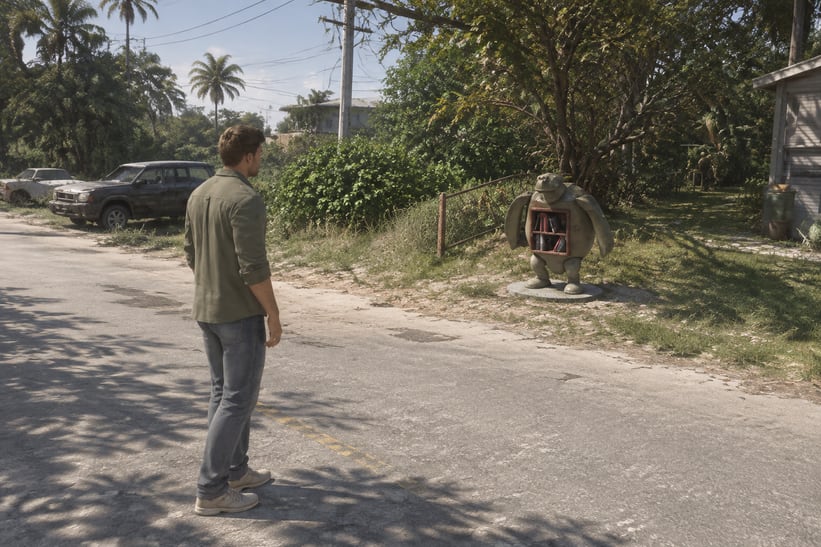
Use Inspect Surroundings when small environmental details are difficult to read from the normal camera.
- 1. Stand still on foot.
- 2. Hold L2 on PS5 or LT on Xbox.
- 3. Click R3 on PS5 or the right stick on Xbox.
- 4. Move the right stick to look around.
- 5. Press R2 on PS5 or RT on Xbox to zoom closer.
Your character stays in place while the camera turns. Keep the left trigger held to maintain the inspection view, then release it to return to the external camera.
Switch Between External Aiming and a Weapon Sight
With a compatible scope or sight attached, hold L2/LT to aim and click R3/the right stick to look through it. Movement remains available while aiming. Press the right stick again or release the aiming trigger to leave the sight view.
This is an action-specific camera change. It should not be treated as evidence that every weapon supports an identical view or that a separate first-person combat mode has been unlocked.
Set the Phone Display to First Person
Open Settings → Camera → Phone Display and choose First Person. Press D-pad Up to bring out the phone. The view also works inside a vehicle, although the handset blocks part of the image. Closing the phone normally returns you to regular gameplay presentation.
How to Try the Player-Discovered Camera Glitch
The hidden operation exploits the transition between putting away the phone and changing the camera. It is a reproducible launch-period discovery, not a verified secret setting or mission reward. Testing found that it could retain first-person viewing during movement, shooting, and driving.
Button Sequence
Make a separate save before experimenting.
- 1. Pause and open Settings → Controller.
- 2. Find the Touch Pad Button option on PS5 or the View Button option on Xbox.
- 3. Assign that button to Camera.
- 4. Return to gameplay and enter a car.
- 5. Press D-pad Up to open the phone.
- 6. Close it with Circle on PS5 or B on Xbox.
- 7. Immediately press the reassigned camera button repeatedly.
If successful, the phone disappears while the first-person viewpoint remains. The timing can take several attempts. This sequence changes a camera state; it does not establish a supported permanent mode.
Returning to Third Person
Reloading a save is one documented way to restore the normal camera. Camera-changing interactions can also interrupt the glitch, including certain shop or garage menus. These resets are another reason to keep the workaround separate from a normal camera preference.
Restore your original controller assignment afterward if you want the touchpad or View button to perform its previous function.
First Person Versus Third Person in Everyday Play
Reading the World
Stationary inspection is useful for posters, labels, and shop displays. Walk into position using the normal camera, stop, and inspect the detail. The movement restriction means this works as a brief examination tool rather than a replacement for walking around.
Watching Character Actions
Third person keeps the protagonist’s body visible. The glitched view changes that presentation and can expose clipping, especially when holding a long gun. Vehicle-entry transitions can also look awkward. For watching animations and character interactions, the normal camera avoids those documented first-person presentation issues.
Shopping and Collecting Items
The glitch has been demonstrated during item handling, but some purchase menus change the camera and end the effect. A shopping stop can therefore interrupt a first-person session even when ordinary movement has been working. Finish equipment purchases before experimenting if you want fewer camera resets during the test.
Judging Space Around Your Character
As a practical camera choice, use third person when you want to see your character’s position relative to nearby objects. Switch to inspection when a particular detail needs attention. This recommendation follows from the camera positions and inspection’s stationary design, not from a confirmed movement bonus or altered interaction range.
Shooting and Driving Use Different Camera Controls
For shooting, the supported close-up option is the compatible weapon sight. The persistent glitch can also carry into combat, but launch testing found rough edges in weapon presentation. Test it away from an important encounter before committing to an extended session.
For normal driving on PS5, hold D-pad Down and use Square to cycle the external vehicle perspectives. These adjust the camera distance behind the car rather than activating a standard cockpit toggle. The phone-related view and persistent glitch are separate methods.
Set Up a Short Camera Practice Session
During your next equipment stop, use your GTA VI Money plan to cover a compatible optic, complete the purchase, and test the weapon’s sight before continuing your outing. Aim, click the right stick, move a few steps, then release the trigger. That sequence lets you check how the supported aiming view behaves with the equipment you actually carry.
For a separate glitch test, save beforehand and use the phone transition in a parked car. Check walking, item handling, and weapon presentation before continuing. Reload the saved point when you want a predictable return to third person, and restore the controller shortcut if you changed it.